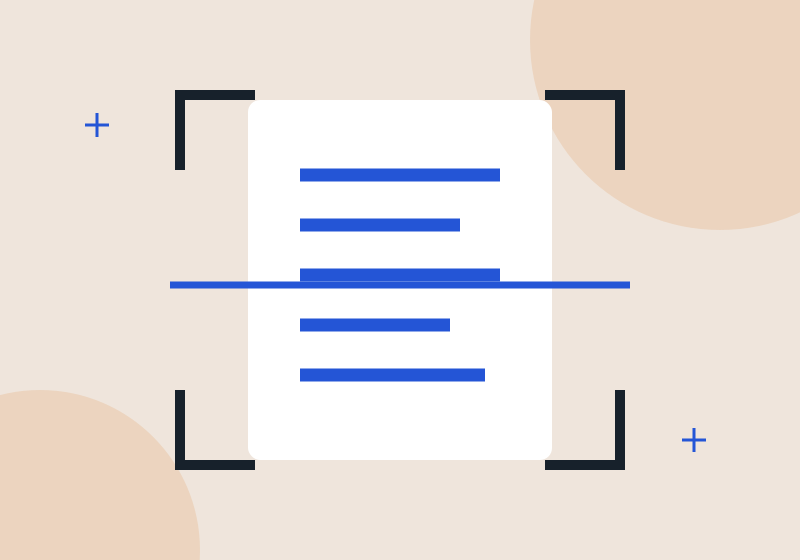
A good scan requires keeping the text legible, the margins intact, and the pages in the correct order. Taking a quick photo might work for a note, but a multi-page contract requires a bit more care. Before you begin, check the file format and size accepted by the recipient.
Google Drive offers in-app scanning, with features to capture documents and save them as PDFs. Options may vary between Android, iPhone, and other versions. Use the scan function available in your app without needing to install an unknown converter.
Prepare the sheet and the lighting.
Place the document on a flat surface, ensuring contrast between the paper and the background. Avoid shadows from your phone and reflections from a lamp directly overhead. Clean the lens and keep the device parallel to the page to reduce line distortion.
If the paper is folded, unfold it without damaging the contents. For documents with clear details, compare a color print with a high-contrast filter: the filter can make the text easier to read, but it can also erase stamps or subtle notes. Choose based on legibility, not just the appearance of a white sheet of paper.
Assemble the file carefully.
- Open the scanning option in your chosen app.
- Capture a page and review the suggested clipping.
- Please confirm that no signatures, dates, or numbers are missing from the image.
- Add the remaining pages in sequence.
- Review the instructions, save, and open the final PDF.
Don't confuse the camera preview with the saved file. Zoom in on the PDF and read a small line near the edges. In long documents, check the first and last pages and look for duplicate or missing pages. If something is wrong, recapture that page before sending.
Give it a name that will help it be found.
“Final-Document-2.pdf” quickly loses its meaning. Prefer a structure like “2026-09-registration-certificate.pdf”, without including complete personal document numbers in the name. When there are versions, indicate the date or revision instead of overwriting the single copy.
Save the PDF in a suitable folder and check which application account is active. A professional file mistakenly saved to a personal account can be difficult to locate later. See also how Organize files on your phone..
Share only with those who need it.
If using a cloud link, check who will have access and whether they can only view or also edit. A link open to anyone can circulate beyond the original recipient. For sensitive documents, use the channel requested by the institution and avoid public converters as a shortcut to reduce file size.
Scanning does not authenticate a copy and does not replace signature requirements or presentation of the original. If an institution requests a specific format, confirm instructions directly with them. Preserve the paper copy when it may still be needed.
If the PDF becomes too large
First, check for duplicate pages or unnecessary images. Then, adjust the capture quality if the application allows it and test the reading again. An extreme reduction can make numbers and letters indistinguishable, causing a new submission request.
Choose the available path in your system.
On Android, refer to the scanning function of Google Drive. On iPhone and iPad, Apple describes the capture by Notes and by FilesYou open the scan option, frame the document, adjust the borders, and save the pages. The terminology may vary depending on the version.
Choose the application considering where the file will be stored. A scan saved in a note and a PDF saved in a folder may have different sharing paths. Before capturing a long document, create a test page and confirm that you can export it in the requested format.
Conduct a quality review in four points.
| Point | How to check | How to fix |
|---|---|---|
| Cutout | Are all the corners and information visible? | Adjust edges or recapture |
| Focus | Do small letters remain legible when enlarged? | Stabilize the device and retake the picture. |
| Contrast | Are stamps and clear annotations still present? | Compare filter with color capture |
| Sequence | Are the pages complete and in order? | Reorder and remove duplicates |
A nice image on a small screen might look bad on a monitor. Open the final file and enlarge details like values, dates, and footers. If the recipient needs to print it, think about legibility on paper, not just the mobile preview.
PDFs with images and searchable text are different things.
A PDF can contain only photographs of the pages. To search for or copy words, a layer of recognized text or other textual content is required. Applications may offer character recognition, but their accuracy depends on the document and the tool.
If using recognition, check for similar numbers, names, and characters. The extracted text may replace a letter with a number without making it obvious. Do not use automatic transcription as the sole verification of an important value; compare it with the original image.
Example: preparing a set of documents for enrollment.
First, read the institution's list and separate each document. Check if they require one file per item or a single PDF. Capture the pages in the required order, give them understandable names, and confirm that both sides have been included where necessary.
Open all files before sending and check the allowed size. Then, use the channel indicated by the institution. Do not put personal documents on a public link just because it is faster. If you need to share via the cloud, review the... Google Drive permissions or the service used.
How to reduce the size without destroying readability.
Remove duplicate pages, unnecessary empty spaces, and images that are not part of the document. If further reduction is needed, adjust the export quality when the application allows it. Compare the result to the original using a small line and a color detail.
If the file size exceeds the limit, confirm that the recipient accepts splitting into parts. Do not automatically send your documents to any compression website. Convenience needs to be weighed against the nature of the data and trust in the provider.
Frequently asked questions about digitization
Can I combine documents from different people into the same PDF?
Only send files when it makes sense for the request and for the recipient. Separating files reduces the chance of accidentally sending someone else's data. Review the recipient and attachments before confirming.
Is a signature drawn on the screen valid for any procedure?
Don't assume. The requirement depends on the institution and the purpose. Confirm the type of signature accepted; scanning or drawing a logo does not, by itself, demonstrate that all requirements have been met.
Should I throw away the paper afterwards?
Keep the original for as long as it may be required or has value to you. A legible copy facilitates access, but does not automatically eliminate the need for the physical document.
How to avoid losing the PDF?
Save it to the correct folder, verify the active account, and keep a copy appropriate to the importance of the document. See the guide. file organization.
Continue reading
- How to share files between your phone and computer without complications. — Choose between proximity sharing, cable, and cloud link, paying attention to quality and permissions.
- How to organize your phone and free up space without losing files. A guide to reviewing downloads, photos, and apps, separating what matters, and avoiding a cleanup that erases useful data.
- App permissions: what to review on your phone — See how to evaluate requests for camera, microphone, location, and files according to the function you want to use.
- Cloud photo backup: how to check if your images are protected Understand the difference between sending, syncing, and saving a copy, and do a check before switching phones.
Official sources and references
Consult the channels responsible for the resources and conditions mentioned in this guide.